
Acer 4-in-1 USB C Hub
4.2Editor score
4K@60Hz dual display
100W power delivery
Compact 4-in-1 design
This comprehensive guide compares the top ten dual HDMI monitor adapter options for expanding your workspace with multiple displays across various operating
Expanding your digital workspace often requires connecting multiple external displays to boost productivity and streamline your workflow effectively. Finding the right adapter can be challenging due to the variety of ports and operating systems available on modern laptops and desktops today.
We have carefully evaluated ten leading models based on their video output capabilities, compatibility with major operating systems, and overall build quality for reliable performance. Our comparison focuses on how well each device handles high resolution displays and whether they support extended or mirrored modes seamlessly.
Each selection below highlights specific strengths such as power delivery support data transfer speeds or specific port configurations to help you make an informed decision. Please note that product availability and pricing can change frequently so checking current listings is always recommended before making a final purchase.
4.2Editor score
4.5Editor score

4.5Editor score
The following table provides a side-by-side comparison of all ten selected adapters highlighting their key specifications and primary use cases for different users.


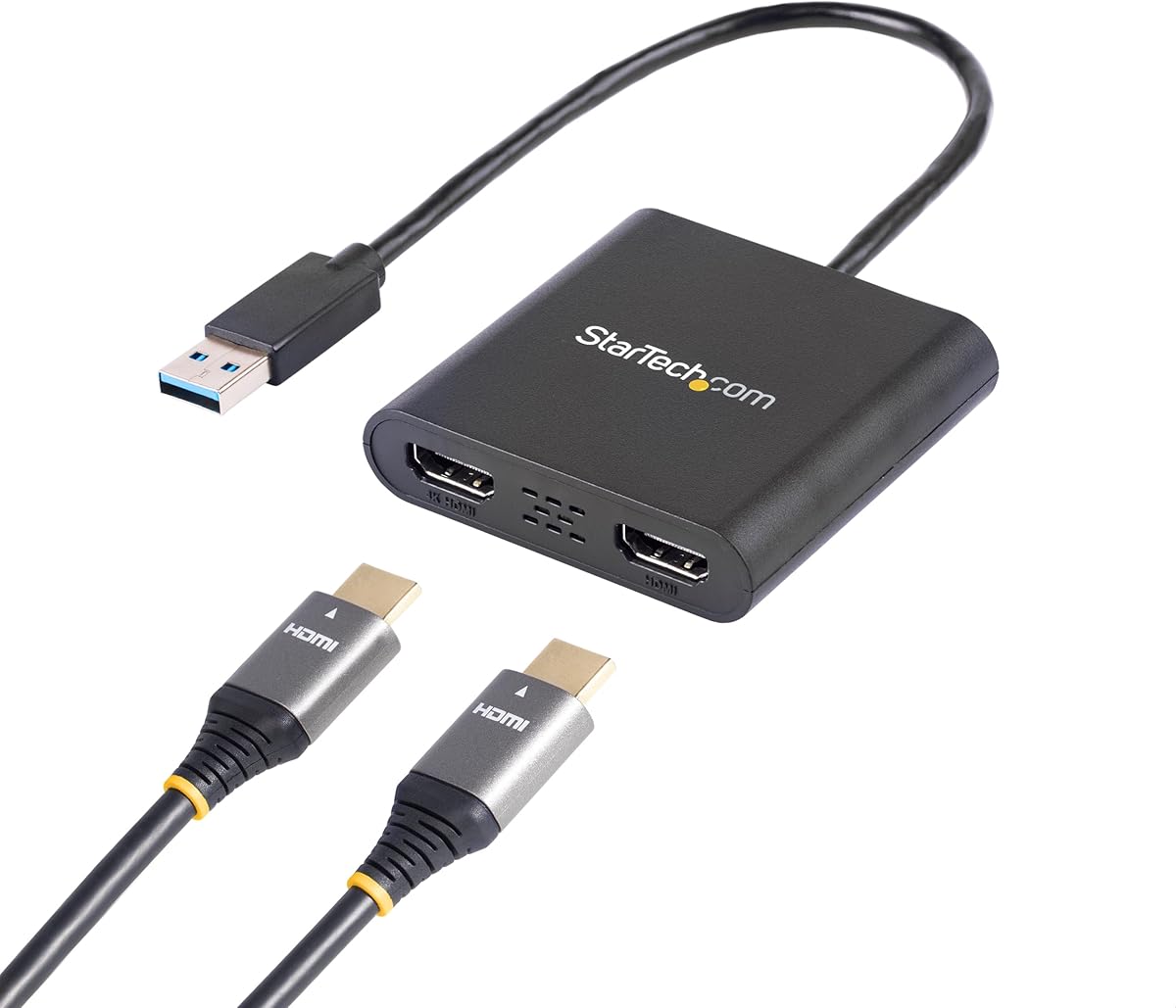
The StarTech USB-A 3.0 to Dual HDMI Adapter stands out as a robust choice for Windows users seeking to expand their desktop setup with two external monitors. With a strong rating and consistent performance it delivers reliable video output up to 4K at 30Hz on one display and 1080p at 60Hz on another making it ideal for productivity tasks.
We may earn a commission when you buy through this link, at no additional cost to you.
This adapter is designed specifically for Windows environments ensuring compatibility across X86 X64 and ARM platforms including Intel AMD and Snapdragon systems. It requires administrator rights for driver installation which adds a layer of security and control for IT professionals managing office equipment. The 3-year warranty and lifetime technical support provide peace of mind for long-term use.
While it lacks support for macOS and Linux systems its focused design ensures optimal performance on Windows machines. The cable length of 9.8 inches offers enough flexibility for typical desk setups without excessive slack. Users should be aware that administrative privileges are necessary to install the drivers which might be a hurdle in restricted corporate environments.
For professionals working primarily within the Windows ecosystem this adapter offers a dependable way to enhance workflow efficiency. It is particularly well-suited for office workstations or home offices where extended displays are needed for multitasking. We recommend this model for anyone needing a stable dual-monitor solution on a Windows PC without complex compatibility issues.
The dedicated drivers ensure smooth video rendering and stable connections across various Windows versions for consistent performance over time.
Backed by a three-year warranty and multi-lingual technical assistance this adapter is built for demanding business environments.
We may earn a commission when you buy through this link, at no additional cost to you.
The Acer 4-in-1 USB C Hub offers an impressive array of features at a budget-friendly price point making it an attractive option for users with USB-C laptops. It supports dual 4K displays at 60Hz which is a significant advantage for smooth visuals and productivity. The inclusion of a 100W power delivery port ensures your laptop stays charged while using the adapter.
We may earn a commission when you buy through this link, at no additional cost to you.
Designed with a sleek and compact form factor this hub fits easily into laptop bags for on-the-go work. It includes a high-speed USB-A port for data transfers and robust power delivery capabilities. Users should note that macOS support is limited to mirroring meaning extended displays work best on Windows devices. The cable length is relatively short at 20cm which may require careful cable management.
This adapter is perfect for professionals who need high-resolution dual displays without breaking the bank. It handles data transfer efficiently and keeps your device powered during heavy use. However the short cable might be restrictive for larger desk setups. Mac users should be aware of the mirroring limitation before purchasing.
We recommend this hub for budget-conscious buyers needing high-performance dual HDMI output on USB-C devices. It strikes a good balance between functionality and cost. If you need extended displays on a Mac consider other options but for Windows users this is a solid choice.
Supporting 4K at 60Hz on both ports ensures smooth scrolling and fluid video playback for enhanced user experience.
The 100W PD port allows simultaneous charging of your laptop while connecting multiple peripherals for a clean setup.
We may earn a commission when you buy through this link, at no additional cost to you.
The Selore&S‑Global USB‑C to Dual HDMI Adapter delivers premium features including dual 4K@60Hz output and extensive connectivity options. It is designed for users who demand high-resolution visuals and reliable performance across both Windows and macOS systems. With support for Thunderbolt 3/4/5 and USB4 ports it offers broad compatibility for modern laptops.
We may earn a commission when you buy through this link, at no additional cost to you.
This adapter supports MST mode on Windows allowing for fully independent extended displays which is crucial for multitasking. The USB-A port supports data transfers up to 5Gbps and the PD port provides 90W charging to keep your device powered. However macOS users are limited to mirroring mode which restricts its utility for Mac-based extended setups. An external power adapter is required for full charging capabilities.
Ideal for professionals needing a versatile docking solution this hub combines video data and power in a compact design. It ensures stable performance and smooth visuals for work or entertainment. The limitation on macOS extended mode is a trade-off to consider if you use a Mac regularly.
We recommend this adapter for Windows users seeking top-tier dual 4K performance and extensive connectivity. It offers a premium experience with robust support for extended displays. If you need a reliable hub for high-resolution workstations this model stands out as a strong contender in the market.
Support for MST mode on Windows enables independent extended displays for maximum productivity and workspace flexibility.
Multiple ports including HDMI USB-A and PD allow for versatile connections to peripherals and power sources simultaneously.
We may earn a commission when you buy through this link, at no additional cost to you.
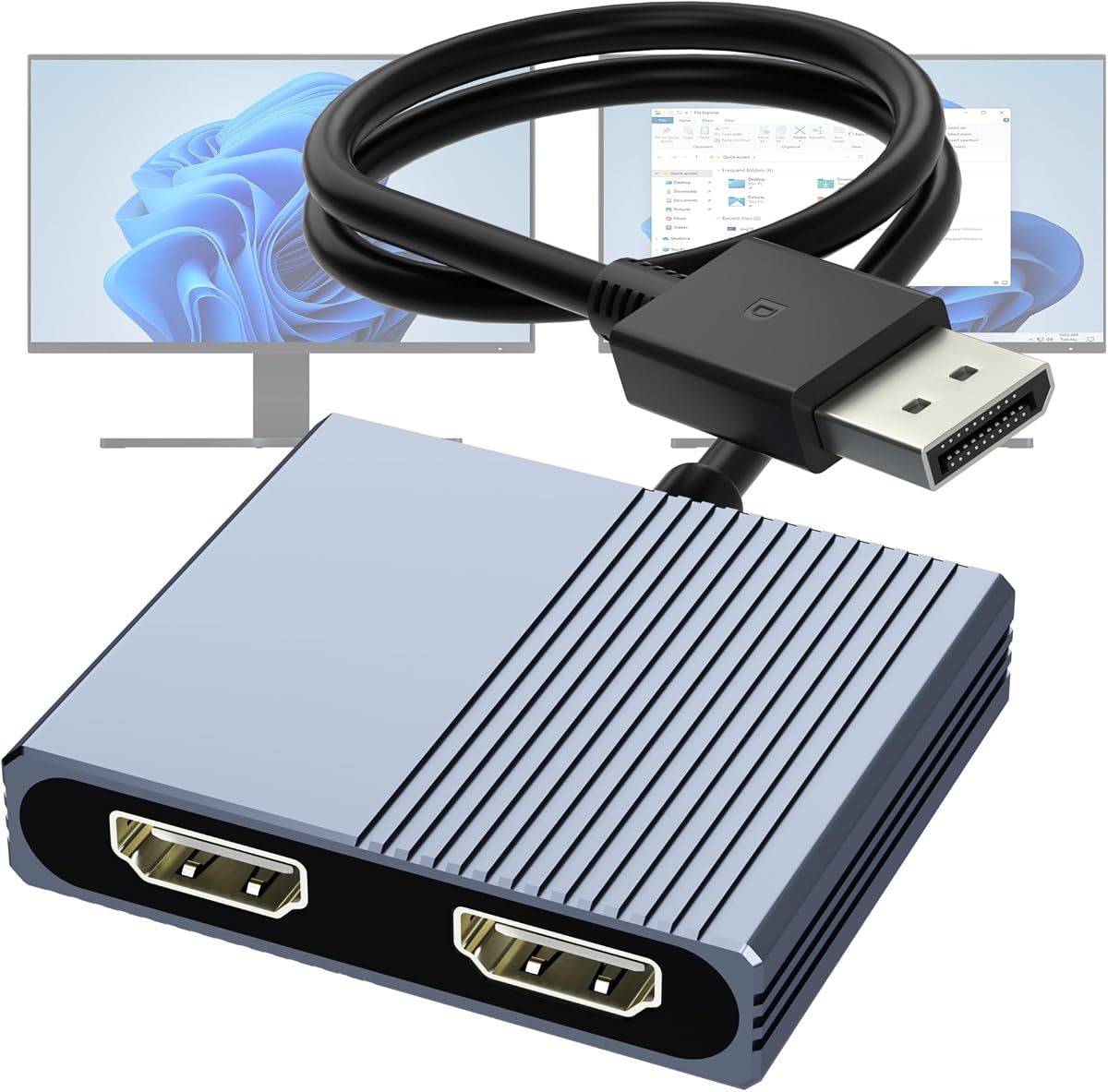
This DisplayPort to Dual HDMI Adapter is tailored for desktop users with dedicated graphics cards supporting DP1.4. It allows for dual 4K@60Hz displays making it excellent for high-performance computing and creative work. The adapter supports extended modes without requiring additional drivers ensuring a plug-and-play experience for compatible systems.
We may earn a commission when you buy through this link, at no additional cost to you.
Designed with anti-interference features it ensures stable signal transmission even under heavy use. The inclusion of a power cable helps maintain performance but means an external power source is necessary. Users should verify their system supports DP1.4 as older versions may limit resolution to 30Hz or 1080p. This makes it less suitable for laptops without dedicated graphics output.
It is particularly useful for those with gaming or workstation PCs needing high frame rates on multiple screens. The non-locking connector design protects your graphics card during plugging and unplugging. However the reliance on DisplayPort input limits its use with modern laptops that primarily use USB-C.
We recommend this adapter for desktop enthusiasts with DP1.4 capable GPUs. It delivers excellent performance for dual high-resolution setups. If your system meets the requirements this hub offers a straightforward way to expand your display configuration without complex software setups.
Dual 4K@60Hz support ensures smooth visuals for gaming and professional applications on modern graphics cards.
Plug-and-play functionality simplifies setup and eliminates the need for additional software or driver downloads.
We may earn a commission when you buy through this link, at no additional cost to you.
The WAVLINK HDMI Splitter supports both USB-C and USB-A inputs providing flexibility for different laptop types. It works across Windows and macOS systems which is rare in this category. The adapter allows for extended displays up to 4K at 30Hz making it suitable for productivity tasks that do not require high refresh rates.
We may earn a commission when you buy through this link, at no additional cost to you.
While it offers broad compatibility driver installation is required which may be a hurdle for some users. It is not recommended for gaming or graphic-intensive tasks due to the refresh rate limitations. The adapter is ideal for office work and general productivity where smooth text and static images are the priority. The included quick start guide simplifies the setup process.
This option is best for users who need to connect to multiple operating systems without buying separate adapters. It supports extended modes on both platforms but with lower refresh rates. The 24-month warranty adds value and reassurance for long-term use in varied environments.
We recommend this adapter for general office work on Windows or Mac. It balances compatibility with performance for typical productivity needs. If high refresh rates are essential consider alternatives but for everyday tasks this provides a reliable cross-platform solution.
Support for both Windows and macOS makes this adapter versatile for diverse office environments and personal setups.
Both USB-C and USB-A inputs allow for easy connection to various laptop models without additional dongles.
We may earn a commission when you buy through this link, at no additional cost to you.
The OREI SplitExtend HDMI Splitter offers flexible connectivity with integrated USB-A and USB-C adapters supporting various devices. It supports extended displays on Windows and macOS allowing for productive multi-monitor setups. The adapter requires Silicon Motion drivers for proper functionality which may need IT approval in corporate environments.
We may earn a commission when you buy through this link, at no additional cost to you.
Optimal performance requires an Intel i5 processor or higher ensuring your system can handle the additional display load. This makes it well-suited for mid-to-high-end laptops and desktops. It does not work with iOS or Linux systems which limits its range of compatible devices. The driver setup ensures stability but adds a step to the initial configuration.
This adapter is useful for users with both USB-A and USB-C ports needing a single solution for dual monitors. It handles extended displays effectively but requires specific hardware capabilities. The 1-year manufacturer support provides assistance if issues arise during use or setup.
We recommend this adapter for users needing flexible input options and solid performance. It works well for productivity tasks on supported operating systems. Ensure your system meets the processor requirements before purchasing to avoid compatibility issues.
The built-in USB-A to USB-C adapter simplifies connection to various device types without extra dongles.
Support for extended mode allows independent screen content for better workflow management and multitasking.
We may earn a commission when you buy through this link, at no additional cost to you.
This docking station transforms laptops into powerful workstations with multiple ports including dual HDMI SD card slots and USB ports. It supports dual 4K displays at 60Hz for crisp visuals and high productivity. The 100W PD port ensures your laptop charges fully even while running multiple external displays and peripherals.
We may earn a commission when you buy through this link, at no additional cost to you.
Windows users benefit from MST mode allowing independent extended displays while macOS users are limited to mirroring. The hub works best with Thunderbolt or full-featured USB-C ports which are common on modern professional laptops. Users should ensure their port supports video output to avoid issues with signal transmission and display functionality.
Ideal for home offices this hub consolidates connections into a single cable for a clean workspace. The fast charging keeps your device powered during long work sessions. However the macOS limitation and need for specific port types may restrict its universal appeal across all laptop models.
We recommend this dock for Windows users needing a comprehensive connectivity solution. It offers a professional experience with extensive port options and high-resolution support. If you use a Mac consider other options due to mirroring limitations on dual monitors.
Multiple USB SD and HDMI ports allow connection of various peripherals simultaneously for a complete workstation setup.
The 100W PD port ensures your laptop remains charged during intensive usage of multiple displays and devices.
We may earn a commission when you buy through this link, at no additional cost to you.
This HDMI splitter is designed for users who need to display the same content on two screens simultaneously. It works with various HDMI sources including PCs laptops and game consoles making it versatile for presentations or media playback. The adapter supports 4K at 30Hz and includes audio synchronization for a complete multimedia experience.
We may earn a commission when you buy through this link, at no additional cost to you.
As a mirror-only device it does not support extended displays which limits its use for productivity multitasking. It is best suited for digital signage or situations where identical content is required on multiple displays. The setup is straightforward without requiring any driver installation ensuring quick deployment in event or business settings.
This option is highly affordable and easy to use for basic display duplication needs. It is not recommended for those looking to extend their desktop workspace but perfect for mirroring media. The lack of extended mode is a key consideration for buyers planning a multi-monitor setup.
We recommend this adapter for simple mirroring tasks on HDMI devices. It offers a cost-effective way to duplicate content across screens. Ensure your needs align with mirroring capabilities before purchasing to avoid limitations in workflow.
No drivers needed for quick setup making it ideal for temporary or event-based display setups.
Built-in audio sync ensures sound matches video output on both displays for an immersive experience.
We may earn a commission when you buy through this link, at no additional cost to you.
This adapter offers a compact design with powerful features including dual 4K@60Hz outputs and high-speed data transfer. It supports Thunderbolt and USB-C ports with DisplayPort Alt Mode ensuring it works with modern ultrabooks and laptops. The inclusion of a 100W PD port means your laptop stays powered while in use.
We may earn a commission when you buy through this link, at no additional cost to you.
Windows users can extend displays across two monitors while macOS users are restricted to mirroring. The 5Gbps USB-A port allows quick file transfers for efficient workflow. Users should verify their laptop port is full-featured to ensure video output works properly without connection issues.
Ideal for professionals on the go this hub combines essential ports in a small footprint. It supports high-resolution video without lag making it suitable for presentations or video calls. However the macOS limitation and strict port requirements may limit its use on older or less capable machines.
We recommend this adapter for portable high-performance needs on supported systems. It offers a balance of power and convenience for travelers. Ensure your device meets the port specifications before purchasing to maximize compatibility.
5Gbps data transfer ensures quick file access and efficient workflow while using multiple displays.
Small size makes it easy to carry in a bag for use with various modern laptops and devices.
We may earn a commission when you buy through this link, at no additional cost to you.
This adapter is designed for desktop users with dedicated NVIDIA or AMD graphics cards supporting DP1.4. It outputs dual 4K@60Hz displays for high-performance work and gaming. The adapter supports extended mode allowing independent screens which enhances productivity for complex workflows.
We may earn a commission when you buy through this link, at no additional cost to you.
The rugged aluminum housing and gold-plated ports ensure durability and reliable signal transmission over time. It works best with direct PC connections rather than docking stations. Users should note that macOS supports mirroring only while Windows supports extended modes for versatile multi-monitor setups.
Ideal for workstations and gaming rigs this hub delivers stable high-resolution output. The gold-plated connector helps maintain signal integrity under heavy use. While it does not work with docking stations it is excellent for direct GPU connections needing multiple displays.
We recommend this adapter for desktop users with compatible graphics cards. It offers robust performance for dual high-resolution displays. Ensure your system meets the DP1.4 requirements to fully utilize its capabilities.
Aluminum housing and gold-plated ports ensure long-lasting performance and reliable signal transmission.
Allows independent screens on Windows for increased productivity and flexible workflow configurations.
We may earn a commission when you buy through this link, at no additional cost to you.
The UANTIN 6-in-1 USB C Hub provides extensive connectivity with dual HDMI ports and multiple USB-A interfaces. It supports dual 4K@60Hz displays ideal for modern workspaces needing high-resolution visuals. The 100W PD port ensures your laptop stays charged while using multiple external peripherals.
We may earn a commission when you buy through this link, at no additional cost to you.
Windows users can utilize MST mode for extended displays while macOS is limited to mirroring. The hub supports Plug-and-Play reducing setup complexity for immediate use. Users should note the USB-A ports are 2.0 which limits data speeds compared to 3.0 ports.
This compact hub is perfect for hybrid workers needing a portable solution for multiple displays and peripherals. It keeps your workspace organized by consolidating connections. However macOS users may find the mirroring limitation restrictive for certain workflows.
We recommend this hub for general productivity needs with multiple peripherals. It offers a solid balance of ports and performance. Ensure your needs align with the port specifications before purchasing.
Multiple USB-A ports reduce the need for additional dongles simplifying your workspace setup.
No drivers required for immediate use making setup quick and easy for all users.
We may earn a commission when you buy through this link, at no additional cost to you.
Selecting the right adapter requires understanding your specific display and connection needs to ensure compatibility and performance.
Always verify that the adapter supports your specific operating system as many products are limited to Windows or macOS. Some devices support extended displays on Windows but mirror only on macOS which restricts your workflow if you rely on independent screens.
Check the product details for OS support and review user feedback from others on your platform to confirm performance.
Choose an adapter that supports your monitor resolution and refresh rate needs such as 4K at 30Hz or 60Hz. Higher refresh rates ensure smoother visuals and better responsiveness for tasks involving video or graphics work.
Confirm that both your laptop and monitors support the desired resolution to avoid bottlenecks in display performance.
Ensure your device has the necessary input port whether it is USB-C Thunderbolt or DisplayPort for the adapter to function correctly. Some adapters require full-featured USB-C ports with video output capabilities which may exclude basic charging or data-only ports.
Match the adapter input with your available laptop ports to prevent connection issues and ensure stable signal transmission.
Some adapters require driver installation which can be a hurdle in corporate environments or if you lack administrative rights. Others offer plug-and-play functionality for immediate use without software setups.
If your IT policy restricts driver installations opt for a model that does not require additional software for operation.
For laptops with limited ports choose an adapter with power delivery to keep your device charged while using external monitors. This feature reduces cable clutter and ensures your device stays powered during long sessions.
Verify the power output wattage meets your laptop charging requirements for consistent battery management.
Look for adapters with durable housing and quality connectors to ensure long-term reliability especially for frequent travel. Aluminum bodies and gold-plated ports often indicate better heat dissipation and signal integrity.
Prioritize products with warranties and positive feedback on build quality to minimize risk of premature failures.
Balance the cost against the features offered ensuring you pay for what you actually need such as specific resolutions or ports. Budget options may lack advanced features but are suitable for basic productivity tasks.
Compare multiple models to find the best value for your specific use case without overspending on unnecessary capabilities.
Choose adapters that come with solid warranty coverage and reliable customer support in case of technical issues. Longer warranty periods indicate manufacturer confidence in product durability.
Review customer support policies to ensure you can get assistance quickly if connectivity problems arise.
Connect the adapter to your laptop's compatible port and ensure it has sufficient power before attaching monitors. If driver installation is required download the latest version from the manufacturer's website to avoid connection issues.
Arrange your displays in your operating system's settings to define whether you want extended or mirrored modes for optimal workspace layout. This configuration allows for seamless navigation across screens and maximizes your productivity.
Avoid bending the cables excessively and unplug adapters gently from ports to prevent damage to connectors. Store the adapter in a protective case when traveling to maintain its condition and ensure longevity of use.
Some adapters support both operating systems but functionality often differs. Windows typically allows extended displays while macOS may be limited to mirroring. Check specific product details for OS compatibility before purchasing.
It depends on the model as some require driver installation while others are plug-and-play. Always verify the product requirements and ensure you have administrative access if drivers are needed.
Most support up to 4K resolution but refresh rates vary. Some support 4K at 60Hz while others cap at 30Hz. Confirm the specifications match your monitor capabilities.
Many adapters are not optimized for gaming due to refresh rate limitations. High-performance gaming may require dedicated GPU outputs for low latency and smooth visuals.
Some adapters work with standard USB-C ports that support video output. Ensure your laptop port includes DisplayPort Alt Mode for video transmission capabilities.
macOS often restricts multi-monitor adapters to mirroring. Use a dedicated graphics output or compatible dock to enable extended displays effectively on Apple systems.
The selected adapters offer a range of solutions from budget-friendly options to high-performance hubs catering to different workspace needs. Each model brings unique features that can transform your productivity workflow effectively.
Prioritize your specific requirements such as resolution refresh rate and operating system support when making your decision. Ensure the adapter matches your laptop ports to avoid compatibility issues and maximize performance.
Always check current availability and product specifications before purchasing as features and pricing may vary. With the right adapter you can significantly enhance your workspace setup and multitasking capabilities.