
Canon PIXMA TR7120
4.3Editor score
Affordable versatile design
Compact stylish footprint
Seamless mobile printing
Finding the right all in one printer for MacBook Air is essential for seamless productivity. You need reliable wireless connectivity, crisp text output, and easy setup that works effortlessly with macOS without requiring extra drivers or complex configurations.
We evaluated ten top-rated models based on wireless performance, print speed, and overall value. Each product offers unique features like duplex printing, scanning capabilities, and mobile app support tailored for modern home and small office environments.
Each pick highlights key strengths and potential trade-offs to help you decide. Keep in mind that availability and pricing can change frequently, so always verify current stock and deals before making your final purchase decision online.
4.3Editor score
3.9Editor score

4.3Editor score
As an Amazon Associate we earn from qualifying purchases.
This side-by-side comparison highlights the core specifications and standout features of each model to help you quickly identify which printer best fits your specific workflow and printing needs.




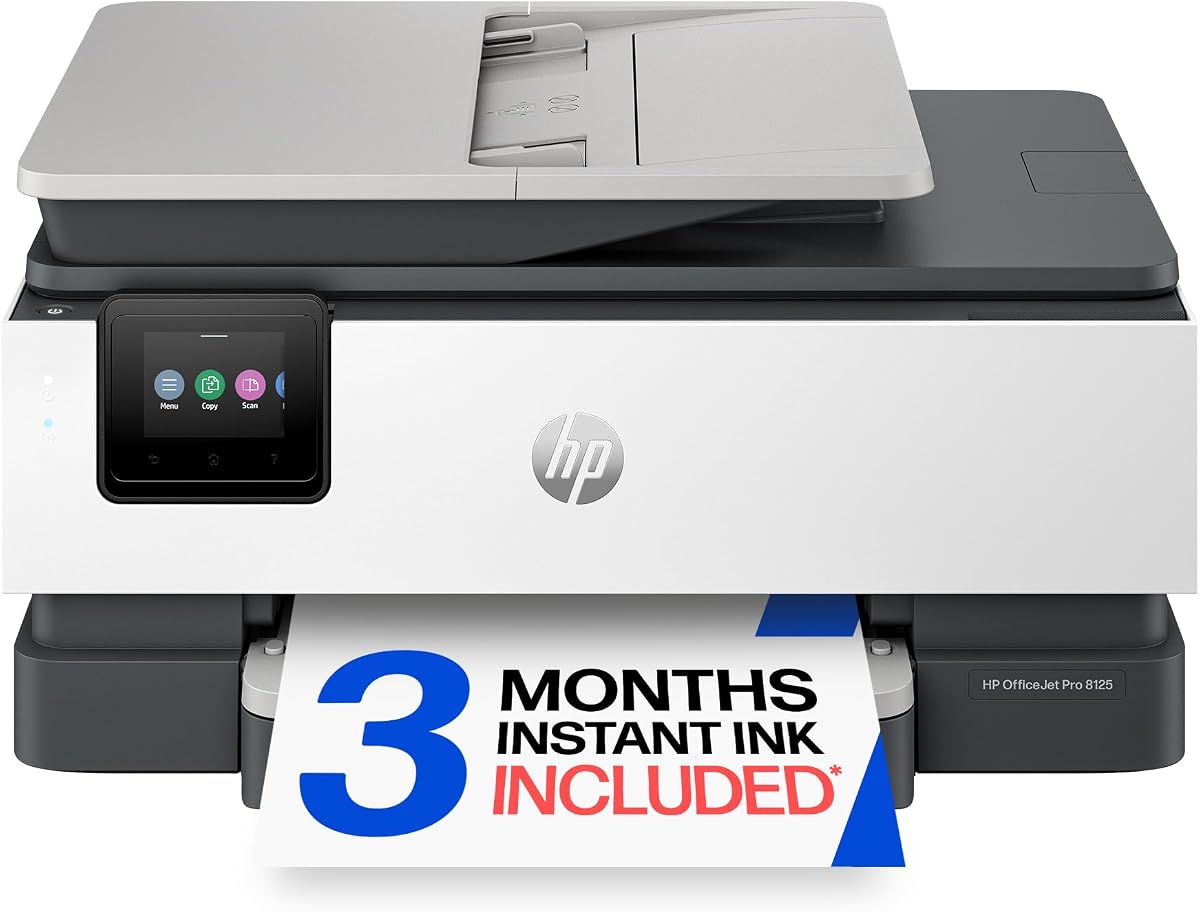
The HP OfficeJet Pro 8125 stands out as a robust choice for MacBook Air users seeking professional output. With a solid 3.9 rating from verified buyers, it delivers fast color printing and smart features that enhance everyday workflows without complicating setup.
We may earn a commission when you buy through this link, at no additional cost to you.
Its standout capability lies in the AI optimization tools that help format web pages and emails precisely before printing. The dual-band Wi-Fi ensures stable connections, while the large touchscreen makes navigating tasks intuitive. HP Wolf Security adds an extra layer of protection for your data.
However, HP enforces strict cartridge policies using original chips which could frustrate users looking for cheaper third-party ink options. Regular firmware updates are necessary to maintain compatibility but may sometimes interrupt workflow briefly if not scheduled properly.
This model is ideal for home offices needing reliable business-quality documents and presentations. If you value speed, security, and smart formatting alongside strong wireless performance, this printer offers excellent value for MacBook Air owners.
HP AI tools remove unwanted content from web pages ensuring your printed output matches your intended layout without manual edits.
HP Wolf Essential Security bolsters network defenses protecting sensitive documents from potential cyber threats during transmission and storage.
We may earn a commission when you buy through this link, at no additional cost to you.
The Epson EcoTank ET-2903 redefines home printing with its revolutionary cartridge-free Supertank system rated at 4.3 stars. It includes enough ink for up to three years making it perfect for heavy users who want to avoid constant cartridge replacements.
We may earn a commission when you buy through this link, at no additional cost to you.
This printer boasts stunning photographic quality thanks to its high resolution output and Heat-Free technology that protects the permanent printhead. The simple refill process uses uniquely keyed bottles to prevent messes and mistakes during maintenance. Its wireless and mobile support works well with macOS AirPrint standards.
The initial investment is higher than standard cartridge models though the long-term savings on ink quickly offset this difference over time. The physical size is larger than compact units due to the built-in tanks which may require more desk space in tight workspaces.
Choose this model if you prioritize long-term cost efficiency and environmental sustainability. Its robust build and high photo output make it a top choice for creative professionals needing consistent quality without frequent supply trips.
Zero cartridge waste helps reduce millions of pounds of plastic landfill contributions while maintaining professional print performance at home.
Engineered Heat-Free technology ensures the permanent printhead lasts the life of the printer minimizing maintenance needs and downtime.
We may earn a commission when you buy through this link, at no additional cost to you.
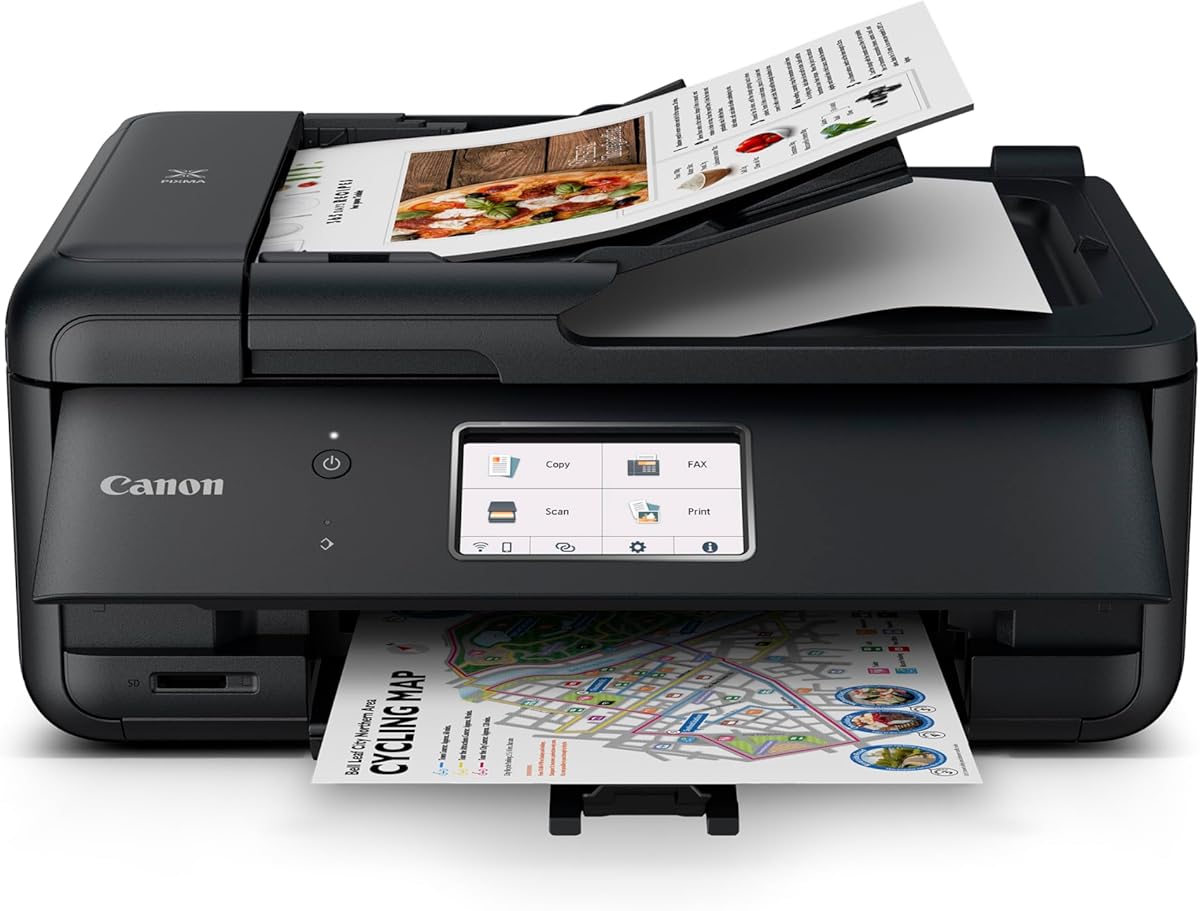
The Canon PIXMA TR7120 is an excellent entry-level option rated 4.3 stars offering exceptional value for MacBook Air users on a tight budget. Its compact design fits effortlessly into any workspace while delivering sharp text and vivid color output.
We may earn a commission when you buy through this link, at no additional cost to you.
Setup is effortless with dual-band Wi-Fi ensuring stable connections for seamless wireless printing from laptops or tablets. The Auto Document Feeder handles multi-page scans smoothly and the intuitive OLED display helps monitor status at a glance. Mobile apps support AirPrint and Mopria for easy on-the-go access.
While it lacks fax capability and advanced scanning features it covers all essential needs for home students and hybrid workers. The hybrid ink system provides good quality but may require frequent replacements compared to tank-based systems for heavy daily usage.
This printer is perfect for casual users needing reliable wireless printing without breaking the bank. If you need a stylish compact all-in-one for documents and photos Canon this model is a smart affordable choice for your MacBook Air setup.
The two-cartridge hybrid ink system delivers sharp text and vivid colors while remaining affordable for everyday home printing needs.
Dual-band Wi-Fi ensures stable connections allowing smooth printing from any device in your home or office network.
We may earn a commission when you buy through this link, at no additional cost to you.
The Canon PIXMA TS6520 is a compact 4.2 rated printer designed for users needing essential all-in-one functions without taking up much desk space. It excels at printing crisp documents and vibrant photos while maintaining a small aesthetic footprint.
We may earn a commission when you buy through this link, at no additional cost to you.
Wireless connectivity is stable with dual-band Wi-Fi and mobile printing support for AirPrint and Mopria services. The OLED display simplifies monitoring ink levels and printer status making operation straightforward. Automatic duplex printing helps save paper and speed up your workflow efficiently.
It lacks an Auto Document Feeder which limits scanning multi-page documents quickly compared to other models. Its duty cycle is best suited for light to moderate home use rather than heavy daily office printing tasks.
Ideal for students or home users with limited workspace this printer combines style with functionality. If you need a reliable wireless printer for occasional docs and photos the TS6520 is a great compact choice.
Designed to fit seamlessly into any workspace the small footprint complements your environment without sacrificing core printing functionality.
The hybrid ink system delivers sharp text and vivid colors ensuring your photos look great on a wide range of media.
We may earn a commission when you buy through this link, at no additional cost to you.
The Brother Work Smart 1360 is a functional 3.8 rated printer offering robust cloud connectivity for modern hybrid workers. It brings full-size features like ADF and duplex printing into a compact design suitable for home offices.
We may earn a commission when you buy through this link, at no additional cost to you.
You can print and scan directly to popular cloud services like Google Drive and Dropbox using the simple 1.8-inch color display. The fast 16 ppm speed and reliable wireless connections ensure efficient workflow whether you are at home or on the move.
The lower rating suggests some users may encounter minor connectivity or usability issues compared to top-tier models. The display is smaller which might make navigation slightly less intuitive than larger touchscreens found on pricier units.
This model fits users needing direct cloud integration without complex setup. If you frequently save files to cloud storage and want a budget-friendly all-in-one this Brother printer offers solid productivity features.
Seamless integration with popular Cloud apps allows printing and scanning directly to services like Drive and Dropbox easily.
Automatic duplex printing and an Auto Document Feeder deliver professional full-size capabilities in a compact wireless design.
We may earn a commission when you buy through this link, at no additional cost to you.
The HP Envy 6155 offers a stylish home solution rated 4.2 stars with True-to-Screen Tech for vibrant photo outputs. It combines intuitive design with AI features to ensure your printed documents look exactly as intended.
We may earn a commission when you buy through this link, at no additional cost to you.
The large 2.4-inch touchscreen makes navigation easy and the Instant Ink trial helps manage costs automatically. Dual-band Wi-Fi provides reliable wireless connectivity for all your MacBook Air printing needs. HP AI tools help optimize formatting removing unwanted content for cleaner prints.
Color printing is relatively slow at 7 ppm which might be a bottleneck for larger tasks. Like other HP models it enforces strict cartridge policies that could limit users seeking flexible ink purchasing options over time.
Choose this printer if home photo quality and sleek design are priorities. Its combination of AI capabilities and user-friendly interface makes it a strong contender for home users needing a reliable all-in-one.
HP P3 technology ensures documents and photos look as vibrant as they do on your screen when printed.
HP AI removes unwanted content optimizing print layouts so your final output matches your exact vision without waste.
We may earn a commission when you buy through this link, at no additional cost to you.
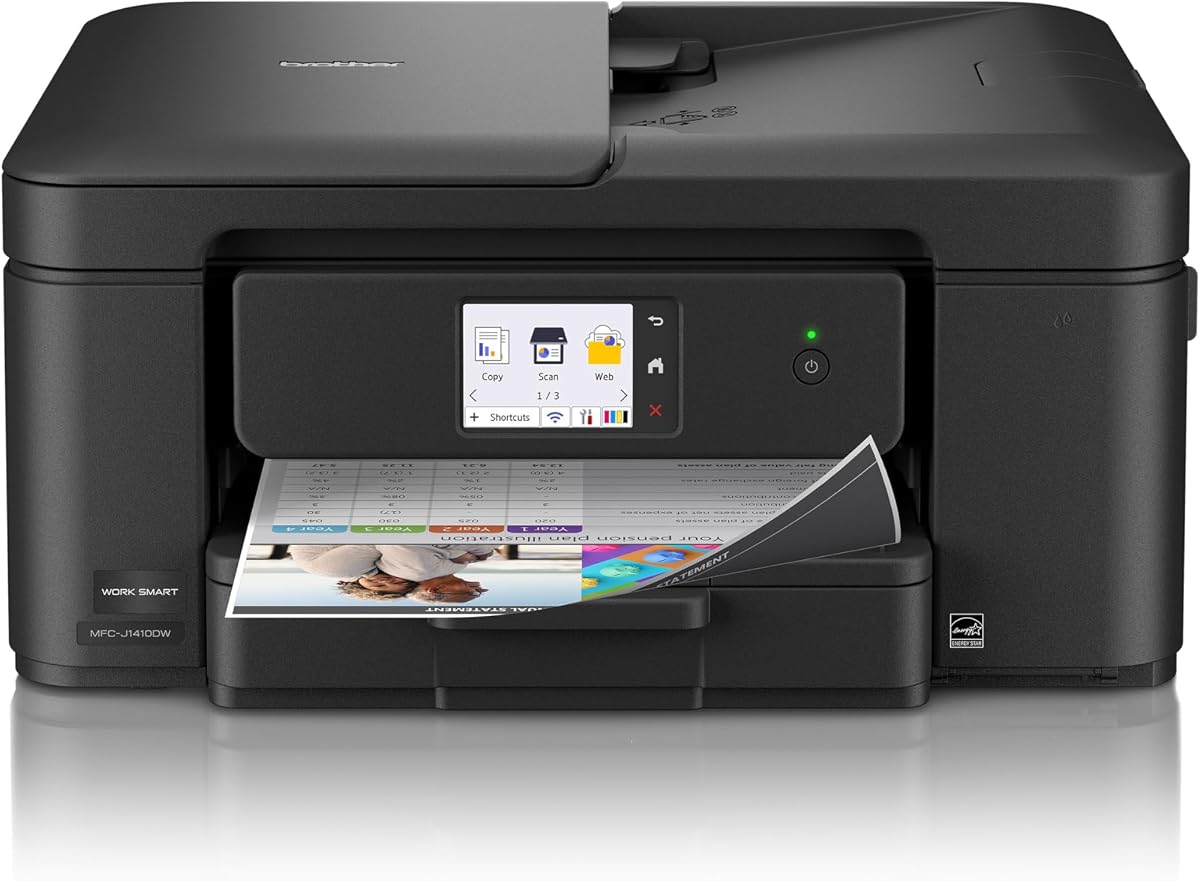
The Brother Work Smart 1410 is a 4.0 rated powerhouse featuring a large 2.7-inch touchscreen for easy navigation. It brings professional productivity features like fast speeds and cloud integration to home offices needing reliable performance.
We may earn a commission when you buy through this link, at no additional cost to you.
Print speeds reach up to 16 ppm in black ensuring efficient workflow for busy users. Seamless integration with Cloud apps allows direct printing and scanning to Drive or Dropbox. The automatic duplex printing helps save paper and streamline your document handling process effectively.
The Refresh Subscription Trial requires enrollment which may be confusing for users who prefer no subscription options. The larger physical size compared to budget units means it needs ample desk space but justifies the with extra features.
Ideal for users who prioritize ease of use and speed. If you need a robust all-in-one with advanced touchscreen controls and cloud support this model delivers excellent productivity.
A clear 2.7-inch color touchscreen enables seamless integration with Cloud apps for easy printing and scanning tasks.
Automatic duplex printing and an ADF help handle multi-page documents efficiently while saving paper and time.
We may earn a commission when you buy through this link, at no additional cost to you.
The HP OfficeJet 3830 is a trusted 4.3 rated compact printer ideal for users needing reliable connectivity without modern bloat. It offers essential copy, scan, and print functions with seamless Instant Ink and Alexa support.
We may earn a commission when you buy through this link, at no additional cost to you.
Voice commands through Alexa allow easy printing and monitoring of ink levels without needing to open an app. Instant Ink ensures you never run out unexpectedly while AirPrint makes it compatible with all macOS devices effortlessly. Quiet mode helps keep noise levels low during operation.
Its design is slightly older than newer models so speed and touchscreen resolution may lag behind latest competitors. However its reliability and ease of integration make it a solid choice for basic home office needs.
Select this if you value simplicity and smart home integration over speed. For users wanting a dependable workhorse with Alexa support the 3830 delivers great value.
Connect your printer to Alexa to receive low ink notifications and enable smart reordering directly from Amazon.
Never run out of ink again with Instant Ink service ensuring deliveries arrive automatically before you run empty.
We may earn a commission when you buy through this link, at no additional cost to you.
The Canon PIXMA TR8620a offers comprehensive 4.0 rated functionality including fax capabilities which are rare in modern printers. It supports up to 200 sheet capacity and integrates well with Alexa for smart ink ordering.
We may earn a commission when you buy through this link, at no additional cost to you.
Alexa allows you to receive low ink notifications and automatically place smart reorders from Amazon without needing a subscription. The dual feed system supports both standard and specialty media ensuring versatile photo printing. Fast speeds of 15 ipm help maintain productivity.
Setup can be slightly complex due to the many features included like fax and dual feeds. The higher price point reflects these additional capabilities but may be more than casual users require for simple printing tasks.
Choose this if you need fax functionality without buying a separate device. It is ideal for home offices that still rely on traditional fax communication but want modern smart features.
Alexa smart reordering ensures you never have too much or too little ink with no subscription required.
200 sheet capacity with dual feeds allows efficient handling of documents and photos without constant reloading.
We may earn a commission when you buy through this link, at no additional cost to you.
The Canon PIXMA TR4720 is a budget-friendly 3.9 rated compact printer offering fax capabilities alongside standard print and scan functions. It suits users needing basic communication tools without sacrificing modern convenience like Alexa integration.
We may earn a commission when you buy through this link, at no additional cost to you.
You can receive low ink notifications via Alexa and place smart reorders from Amazon without a subscription. The compact design fits well on smaller desks while the auto duplex printing helps save paper during standard workflows. Mobile printing ensures seamless connection with your MacBook Air.
Printing speeds are slower at 8.8 ipm for black documents which might affect efficiency for larger jobs. The 100 sheet capacity is smaller than larger office models but sufficient for occasional home use tasks.
Select this if you need fax functionality on a tight budget. For basic home office tasks needing occasional faxing this model provides reliable performance with smart home features.
Connect to Alexa to receive low ink alerts and enable smart reordering from Amazon without subscriptions.
Designed for home use with Auto Document Feeder and mobile printing features in a small footprint.
We may earn a commission when you buy through this link, at no additional cost to you.
Selecting the ideal printer for your MacBook Air involves evaluating connectivity, print quality, and cost efficiency.
Ensure the printer supports AirPrint or has robust mobile apps to work smoothly with macOS. Dual-band Wi-Fi provides more stable connections than 2.4GHz only, which is crucial for consistent printing without interruptions or lag.
Prioritize models with seamless wireless integration to avoid driver hassles and maintain productivity while working from anywhere.
Look for printers offering at least 10 ppm black speeds and high-resolution output for sharp text and vibrant photos. This ensures your documents look professional and your photos retain quality without excessive wait times.
Balance speed requirements with quality needs depending on whether you print more text or images regularly.
Consider ink tank models or subscriptions that offer long-term savings compared to cartridge printers. Calculate the cost per page to understand true expenses over time rather than just upfront device pricing.
Tank systems reduce waste and costs for high-volume printing while cartridges suit occasional usage needs better.
Features like automatic duplex printing, ADF, and fax support can boost productivity if you handle multi-page documents regularly. These options save time and paper while simplifying your workflow significantly.
Identify which extra features align with your daily tasks to avoid paying for unused capabilities.
Modern printers should include security protocols like firmware updates and data protection to prevent unauthorized access. This is vital for home offices handling sensitive information or business documents.
Choose models with strong security features to protect your network and sensitive data during printing operations.
Compact printers save valuable desk space while still offering full functionality. Consider the physical dimensions and aesthetic appeal if your workspace is limited or you want a sleek look.
Opt for a compact design if you have limited space but still need essential all-in-one capabilities.
Smart home features like Alexa support or voice commands add convenience by simplifying monitoring and replenishment tasks. Look for models that integrate well with your existing tech ecosystem for seamless control.
Smart features enhance user experience and help maintain ink levels effortlessly without manual checks.
Check warranty terms and customer support options to ensure peace of mind if issues arise. Reliable support networks help resolve problems quickly minimizing downtime and frustration during usage.
Prioritize brands with strong support reputations to ensure long-term reliability for your investment.
Begin by connecting the printer to your home Wi-Fi network using the setup wizard on the device or via the manufacturer app. Ensure your MacBook Air is on the same network for seamless AirPrint or app-based printing without additional drivers.
Regularly update the firmware via the manufacturer app or printer dashboard to maintain security and compatibility. Periodic cleaning cycles for the printhead ensure consistent print quality and prevent clogs during regular use.
Use genuine or recommended ink cartridges to avoid potential errors or print defects. Monitor ink levels using the device display or app and replace them before they run completely empty to protect the printhead.
Most modern all-in-one printers support Apple AirPrint allowing driverless printing directly from macOS. However some models may require specific mobile apps for full functionality or advanced settings management beyond basic print.
Ink tank models like the Epson EcoTank ET-2903 are ideal for high-volume usage due to refillable tanks offering years of ink. They reduce cost per page and eliminate frequent cartridge replacements effectively.
Yes all listed models support wireless printing via Wi-Fi or AirPrint. Ensure both devices are on the same network to print directly from your laptop without cables.
Inkjet printers like those listed are versatile for photos and documents using liquid ink. Laser printers use toner and are faster for text but less common for all-in-one home needs focused on color.
Use the printer display or companion mobile app to check real-time ink levels. Some models offer smart notifications via Alexa or email when supplies are running low.
Most top picks include automatic duplex printing to save paper and cost. Check specific models to confirm if this feature is automatic or manual depending on the series.
We've highlighted ten top-rated printers tailored to MacBook Air users balancing speed quality and convenience. Each option brings unique strengths from smart AI tools to long-lasting ink supplies for varied home office needs.
Prioritize your specific requirements such as connectivity type ink costs or footprint size before deciding. Select a model that aligns with your daily printing volume and workflow to maximize productivity.
Remember that prices and availability fluctuate so verify current deals and stock before finalizing your purchase. Taking these steps ensures you invest in the right printer that serves your needs well over time.